Select The Object Or View First
Rotation questions usually get easier once you confirm whether you are rotating an object, the view, or the lot perspective.
Build Mode controls
If you are stuck in Build Mode, start with the common action first: rotate, drag, camera, placement, flooring, or wall visibility. Current clues can solve many common blockers without turning old hotkey lists into permanent rules.
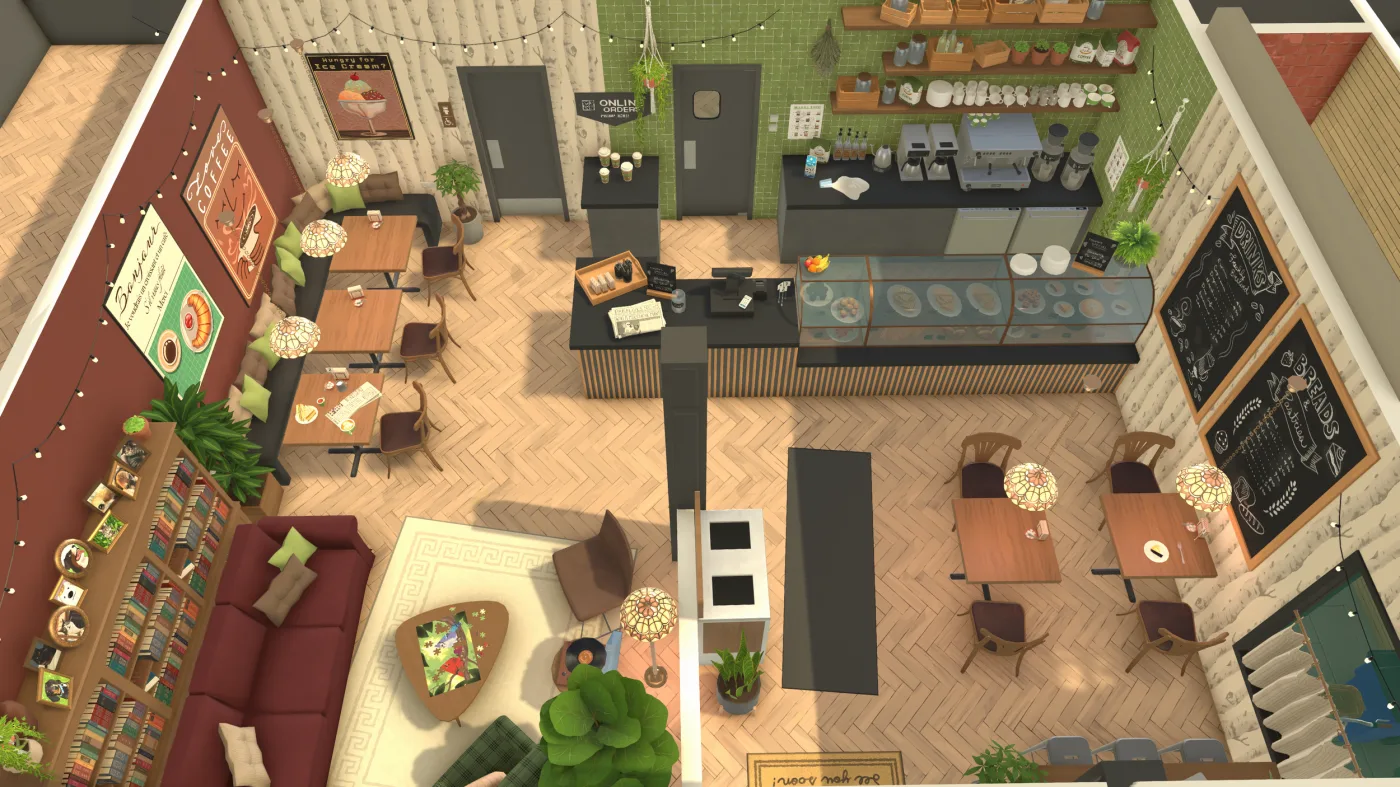
Build Mode is easier when you start from the thing you want to do. Right now, rotate, drag, camera, and flooring problems are more useful entry points than a giant all-controls list.
These are current control clues to test first. Treat them as Early Access guidance, not as a permanent complete hotkey sheet.
| Task | Current clue to try | Good for | Boundary |
|---|---|---|---|
| Move the camera | Use `WASD` or arrow keys, then adjust camera sensitivity if movement feels too fast or slow. | Basic navigation before you blame a build tool. | Camera settings and rebinding can change the feel. |
| Rotate the camera or lot view | Try `Q` / `E`, or right-click drag. On a Mac trackpad, try a two-finger click-and-drag style action. | View rotation, lot-view comfort, and trackpad troubleshooting. | Mouse and trackpad behavior can differ by setup. |
| Rotate a selected item | Try `,` and `.` for 45-degree rotation, or `X` for a larger rotation step. | Furniture placement and object orientation. | Confirm the object is selected and supports the action first. |
| Place with more precision | Try `Alt` to disable snap and `Shift` for vertical movement when the selected item supports it. | Grid-free placement, wall decor, and height adjustments. | Do not assume every object exposes every placement option. |
| Recover from a bad placement | Use `Esc` to cancel placement, `Delete` to sell an object, and `Control + Z` / `Control + Y` for undo or redo. | Fast cleanup before rebuilding a room. | Save before large edits if the build state already feels unstable. |
Use this table when you want the fastest current clue before reading the full control map.
| If you want... | Try this first | Why it helps | Boundary |
|---|---|---|---|
| To rotate a build or lot view | Try current drag behavior or the current rotate clue before forcing old key habits. | Current player reports show drag-style camera and rotation behavior matters more than memorizing one old shortcut sheet. | Exact behavior can differ by mouse, trackpad, and setup. |
| To rotate or resize an object | Select the object first, then check the visible prompt and known current rotate/resize clues. | The action often fails because the wrong item or tool is active, not because the whole control set is missing. | Not every object supports every action the same way. |
| To fix camera frustration | Treat pan, zoom, orbit, tilt, drag, and sensitivity as one camera problem instead of five separate ones. | Many current player frustrations are really camera or trackpad comfort problems. | Other life sim muscle memory may not transfer cleanly. |
| To fix flooring or wall weirdness | Check for wall/separator issues, then try deleting and redrawing the affected walls or room edges. | Current player reports show some floor problems behave more like build-state glitches than missing controls. | This is a current workaround clue, not a universal permanent fix. |
If you came here for a quick answer, start with the action you are trying to perform, then use the full map below when the current clue is still unclear.
Rotation questions usually get easier once you confirm whether you are rotating an object, the view, or the lot perspective.
Resize depends on the selected object, so verify support before you assume the shortcut is missing.
Pan, zoom, orbit, and drag comfort often decide whether Build Mode feels smooth or frustrating.
If flooring, separators, or room boundaries behave oddly, treat it like a build-state problem first.
Use the larger action map after you identify the problem category.
If rotate or resize feels missing, confirm the right object or tool is selected before changing settings.
Trackpad, mouse drag, and camera comfort can matter more than one exact key.
Treat roof hiding and cutaway controls as current-build checks, not permanent button paths.
Current evidence is not strong enough for this page to promise a fixed move-house or lot-relocation path.
Do not assume a standalone foundation tool unless the current UI clearly confirms it.
Use this when you know the task but the current action still feels wrong.
A lot of build confusion comes from editing the wrong thing rather than missing the right shortcut.
Use the visible prompt, known drag behavior, or current control clue before falling back to old guides.
For flooring or separator weirdness, delete and redraw the affected wall or room edge before rebuilding everything.
If a task feels awkward, adjust drag, zoom, orbit, or setup comfort before assuming the build system itself is the problem.
If a guide names a control or label that your current build does not show, treat the guide as outdated for your version.
Use these screenshots to match the kind of problem you are solving, not as a fixed hotkey sheet.
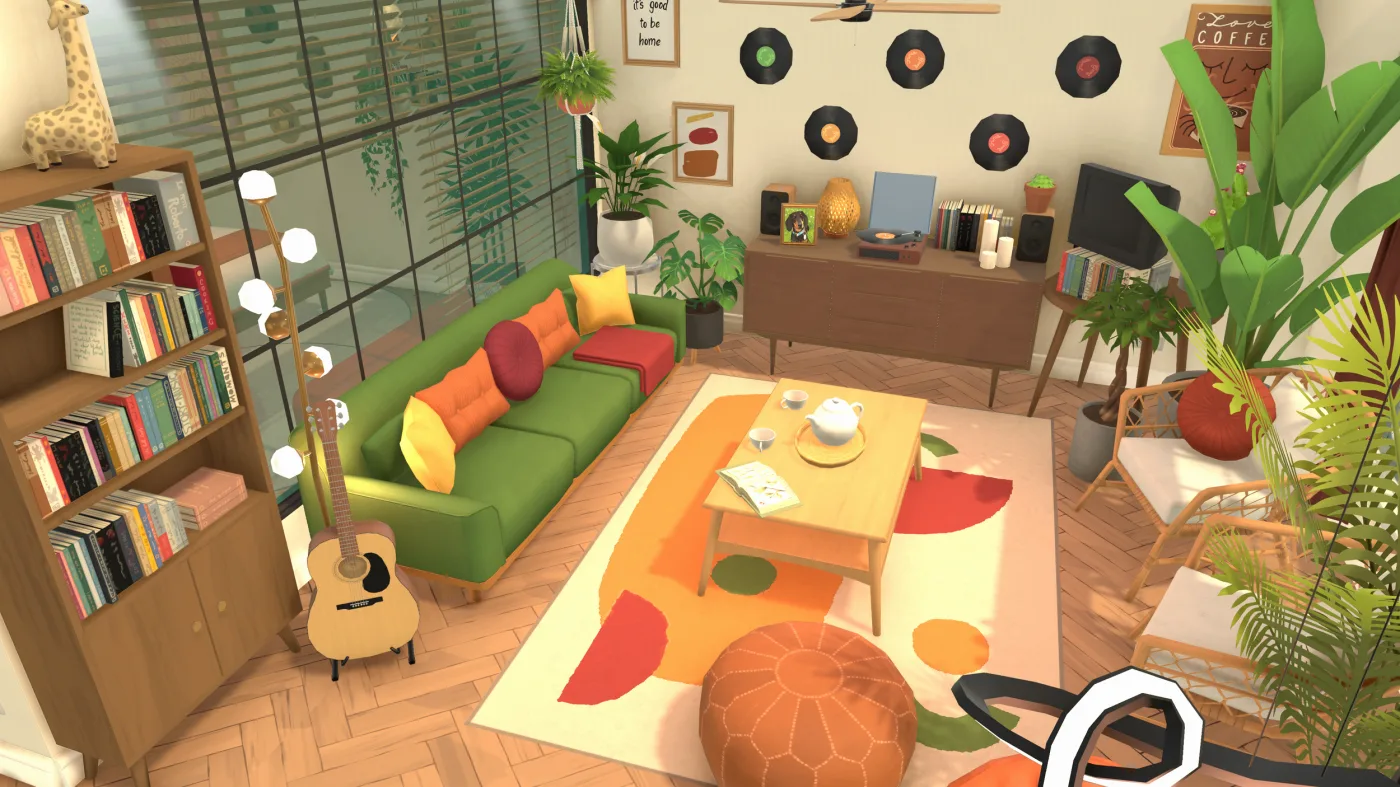
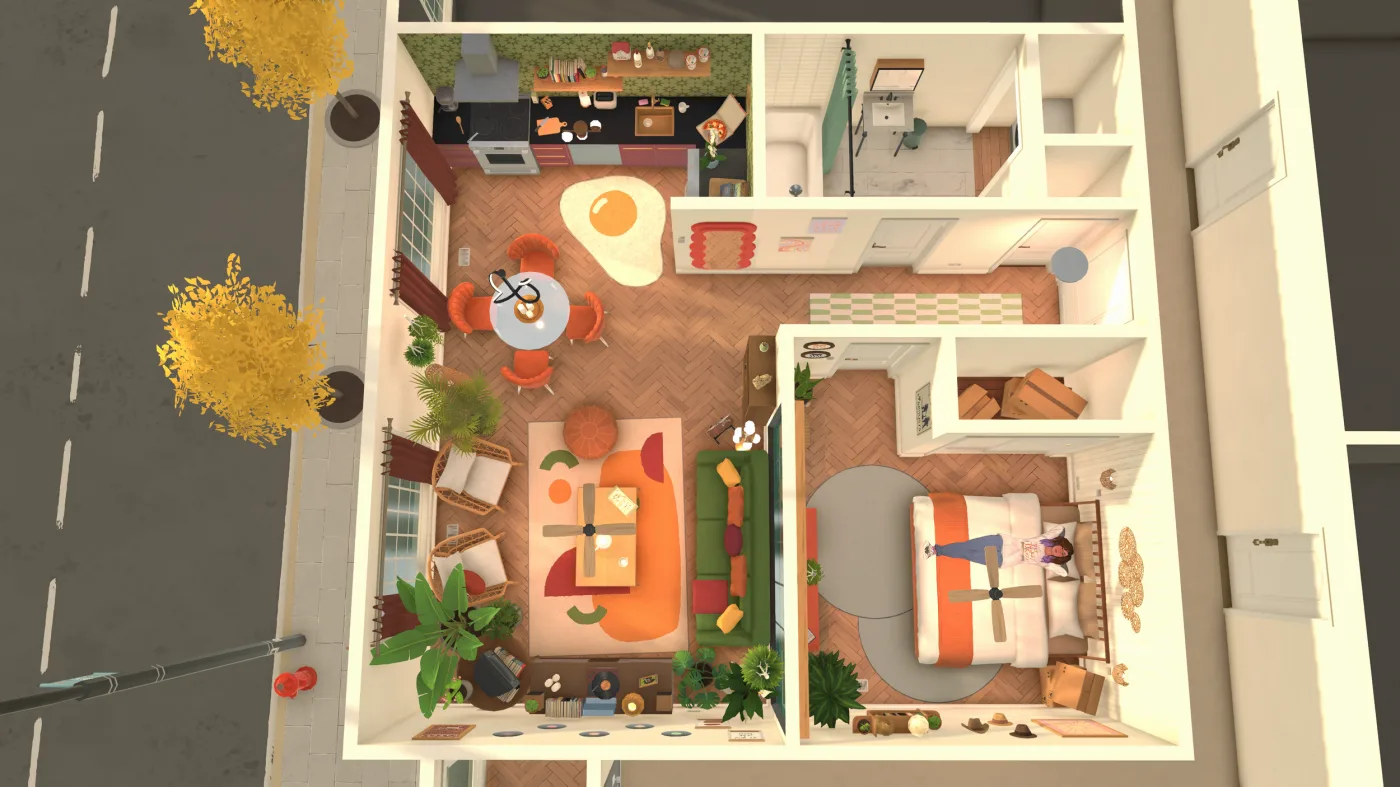
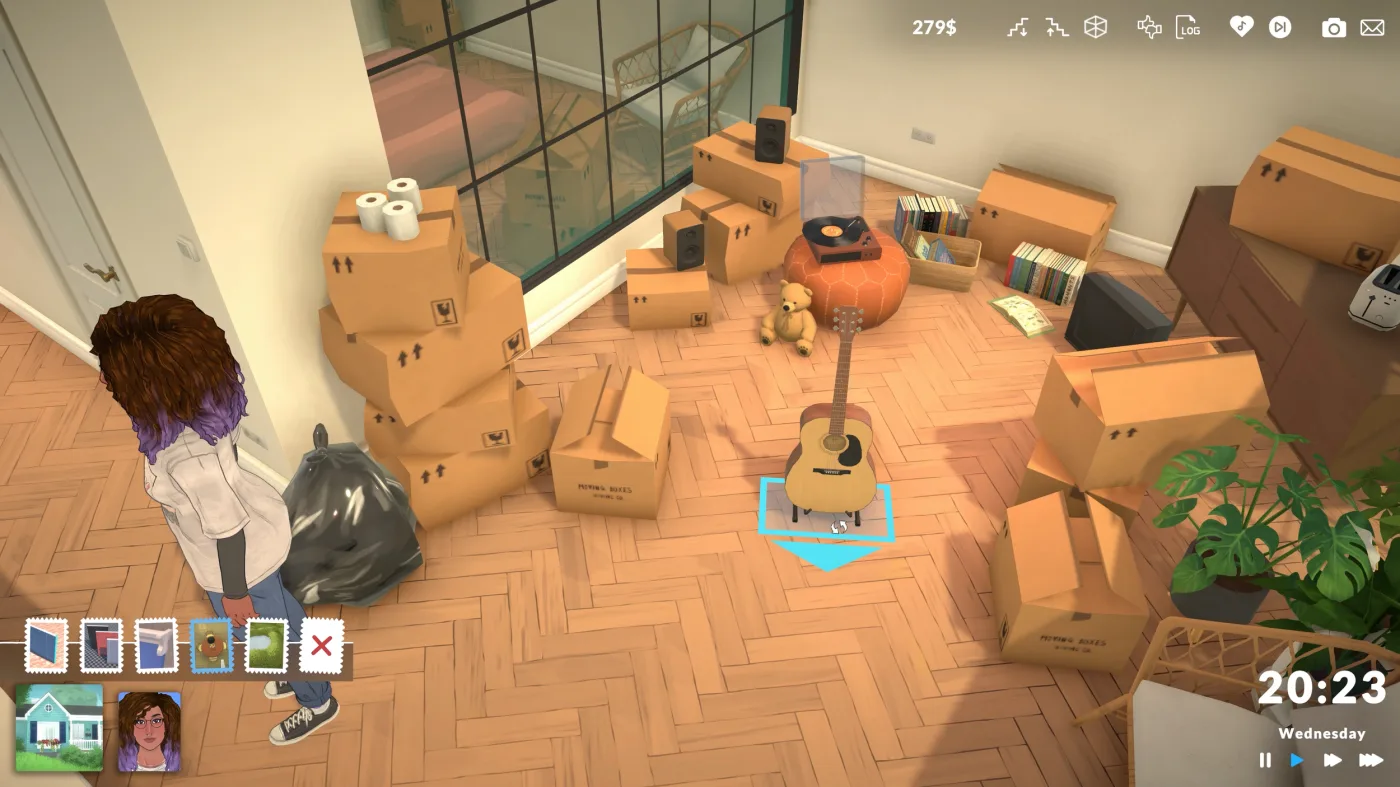
Select the object first, then use the current rotate clue that matches your setup. Treat any fixed shortcut list as a current reference, not a permanent rule.
Try the current rotate or drag behavior before forcing old key habits. Current player reports show drag-style control can matter a lot, especially on trackpads.
Yes, but start by confirming the selected object supports the action and the current prompt is showing the resize clue you expect.
Treat it like a build-state problem first. Current player workarounds include deleting and redrawing the affected wall or separator before rebuilding larger sections.
Treat pan, zoom, orbit, tilt, and drag as one camera-comfort task. If the page feels awkward, fix the view setup first.
A standalone foundation tool is still not something this page treats as firmly confirmed. For now, use wall height, floors, terrain, and other current UI clues before assuming a foundation-specific tool exists.
Use this to separate current build features from planned Early Access updates.
Use this if Build Mode friction is mostly about handheld input, Proton, or control comfort.
Use this before adding custom content that changes build items or shared creations.
Return to the main guide hub for Steam Deck, mods, money, and cheats.